While standalone BeyondTrust products including Password Safe, Endpoint Privilege Management (EPM) for Windows & Mac, and Privileged Remote Access (PRA) have a SCIM API, PathFinder provides a unified or global SCIM API that supports provisioning Users and Groups that can be consume by each individual products within PathFinder.
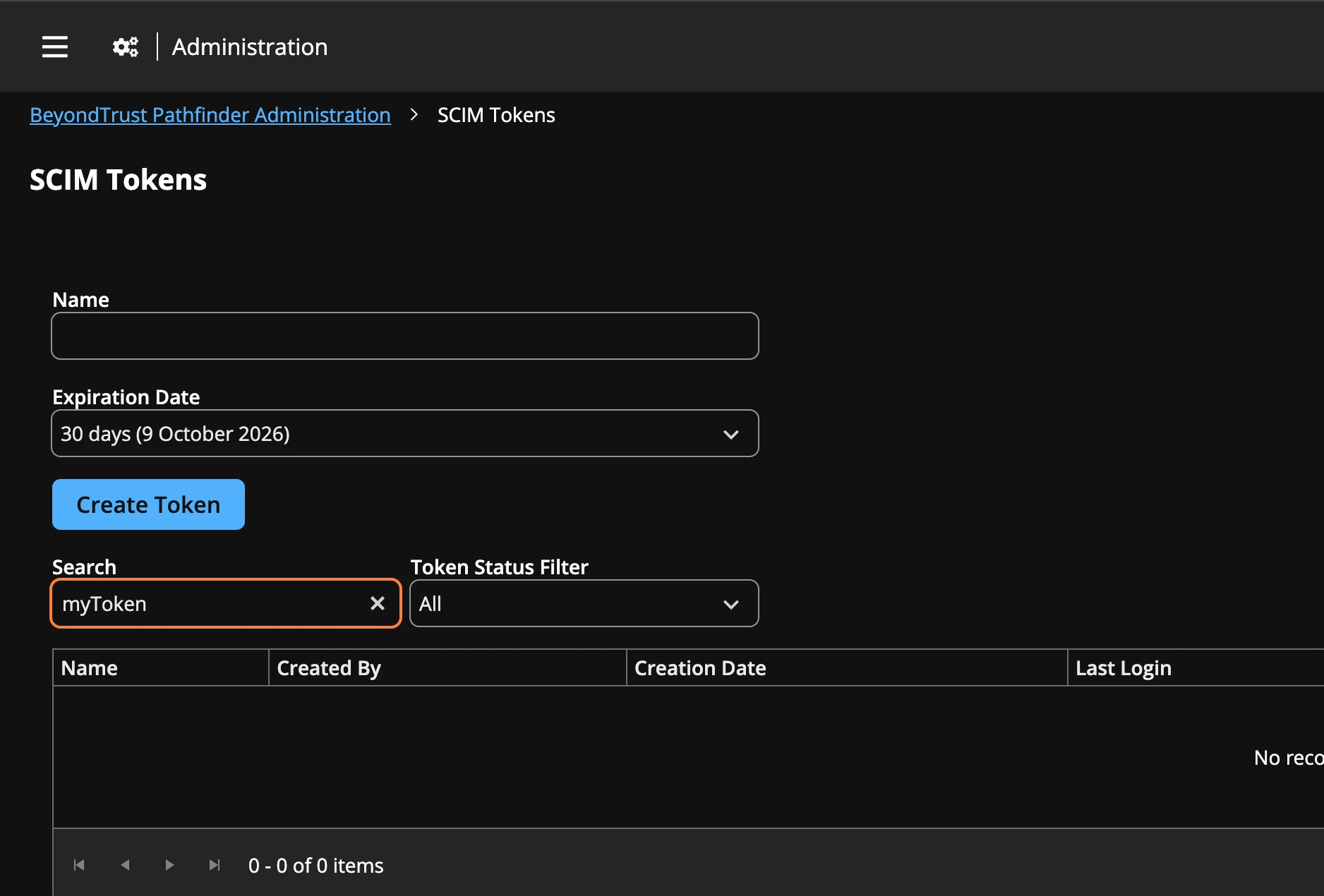
The first step is to create a SCIM token as the SCIM service account, and note the Org ID in the upper right corner. The User must be Administrator in individual BT modules.
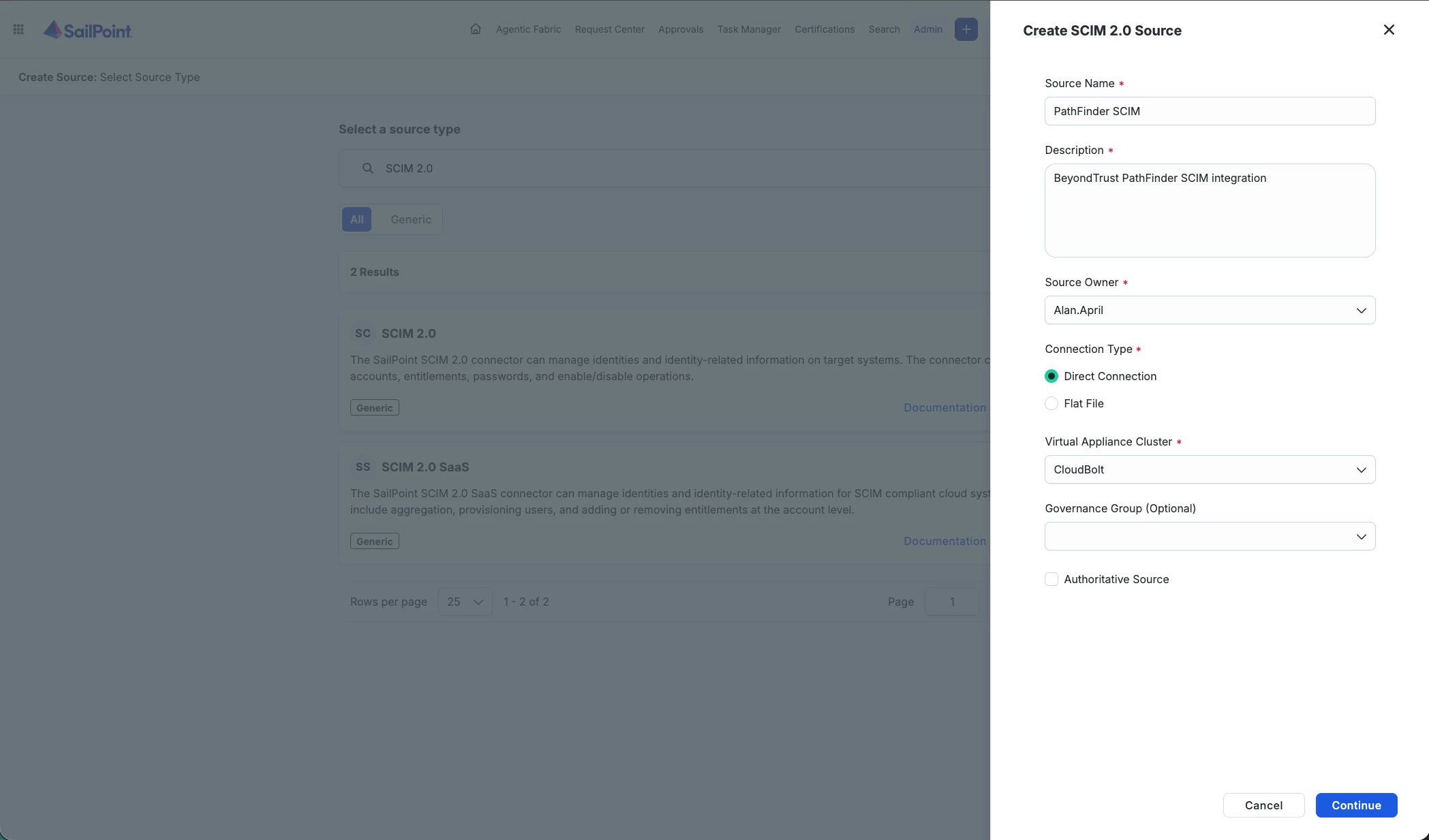
In ISC as Admin, select Sources and create a new SCIM 2.0 Source.
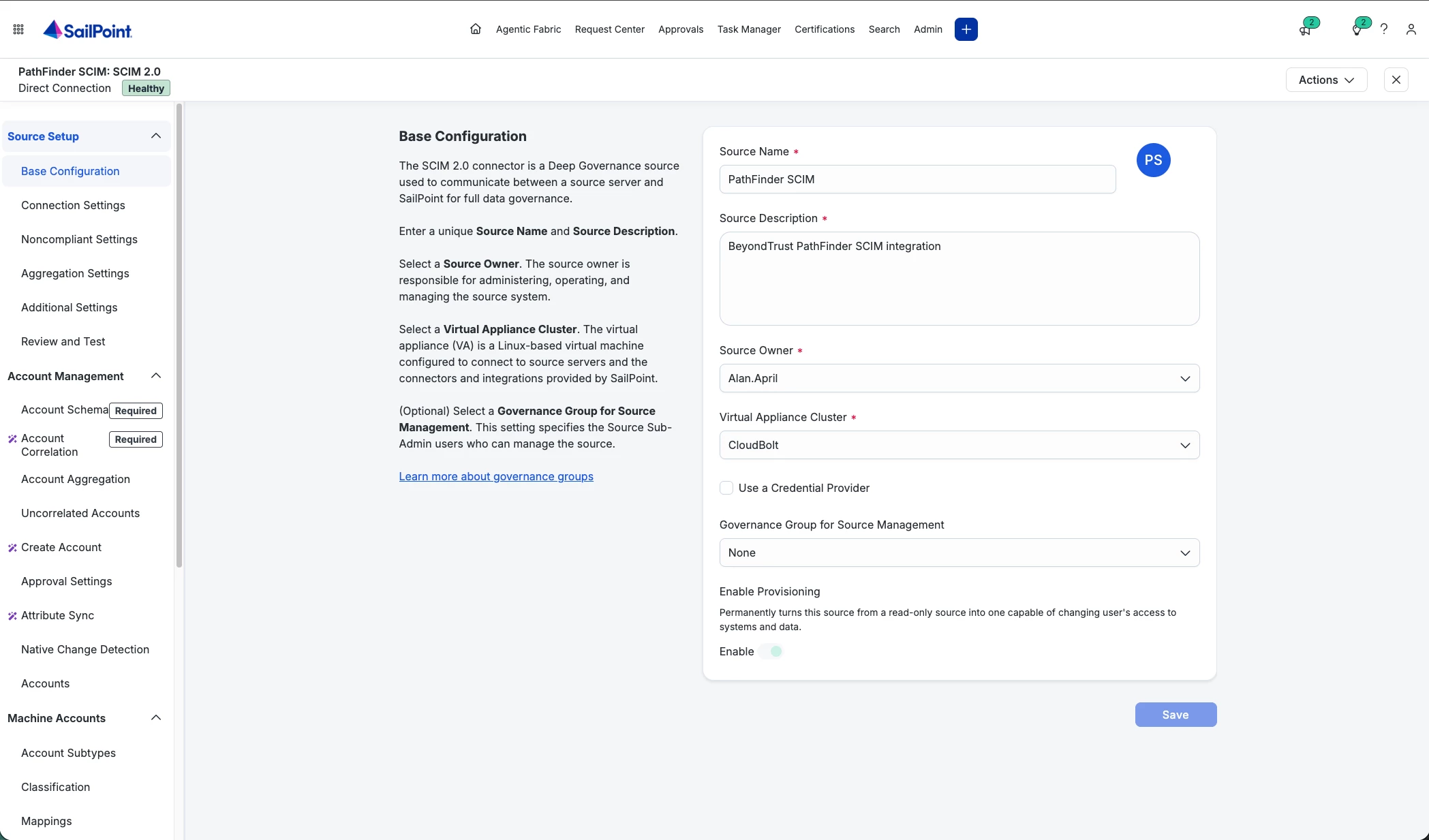
Enable provisioning.
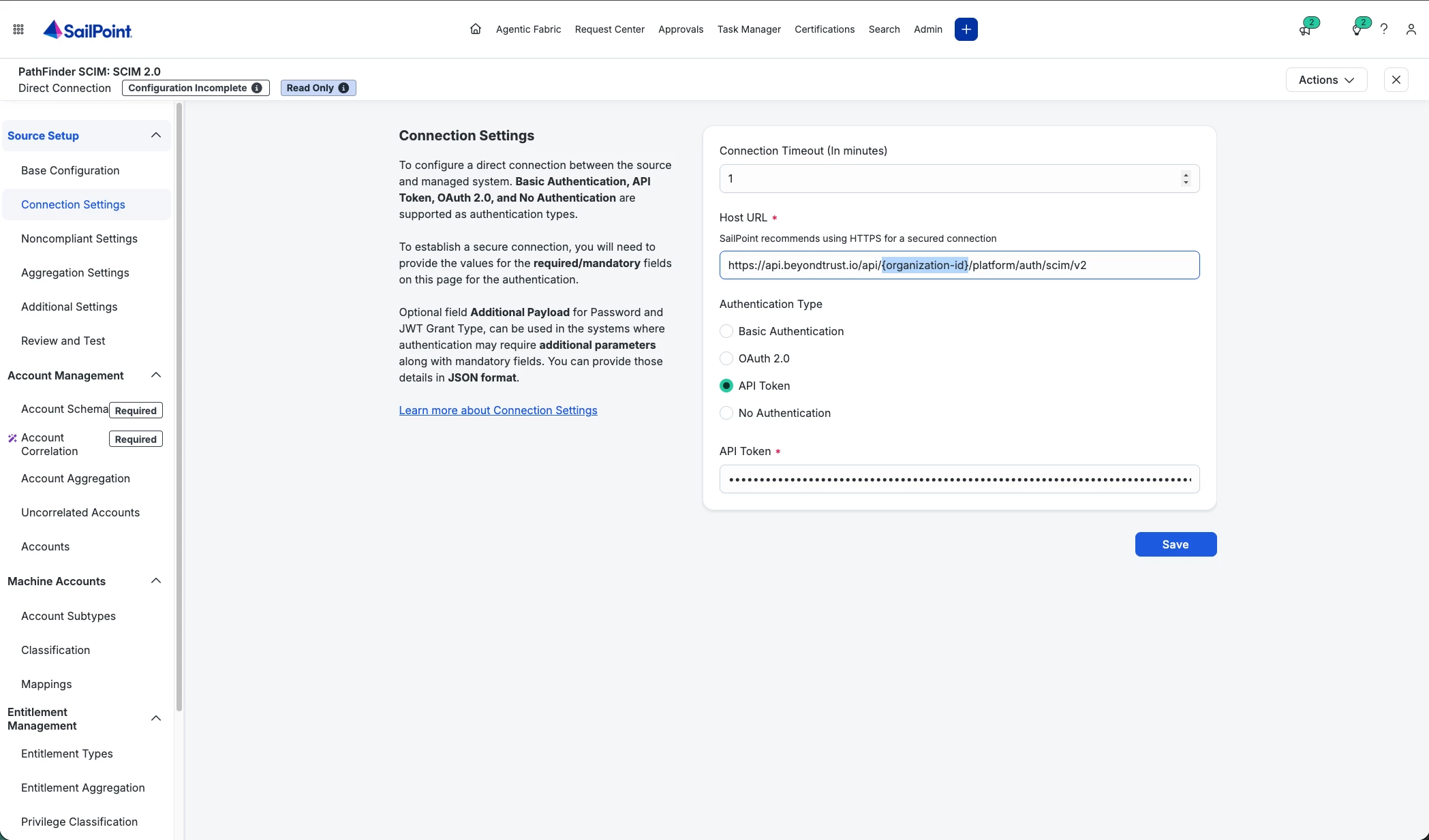
Replace {organization-id} with the Org ID and provide your token. Click Save.
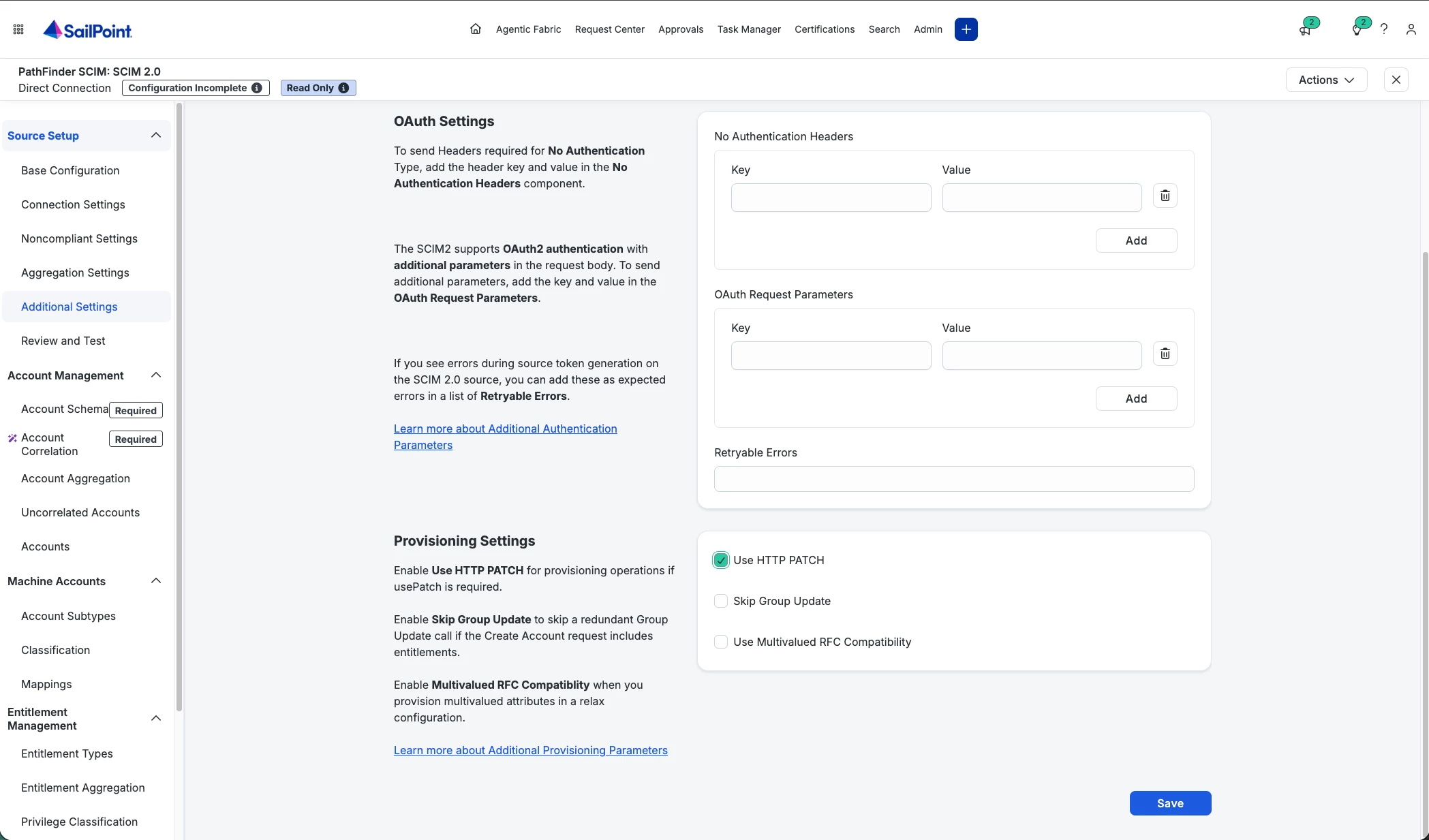
Additional Settings: Check the box for HTTP Patch. Click Save.
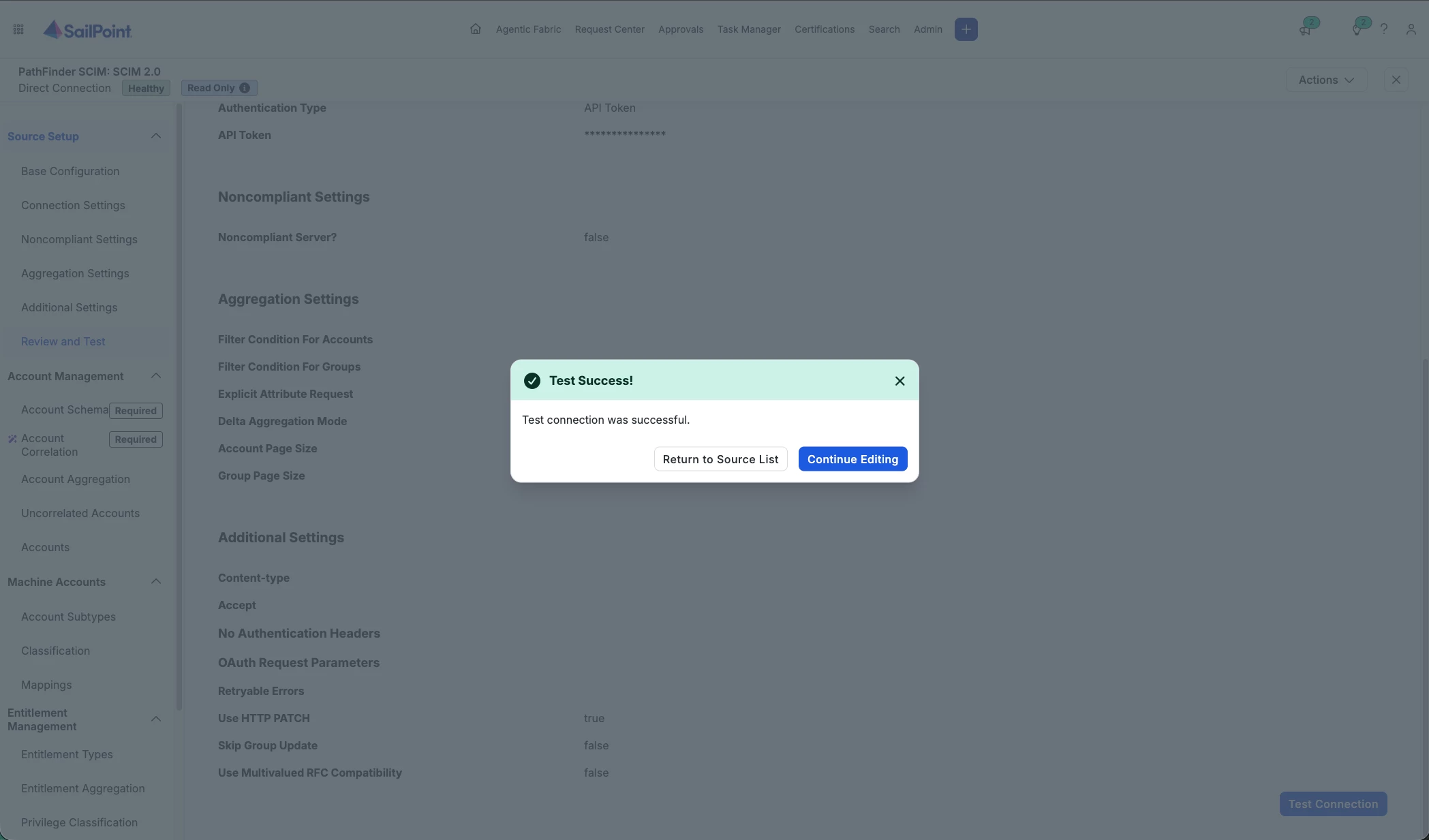
At this point you should be able to Test successfully.
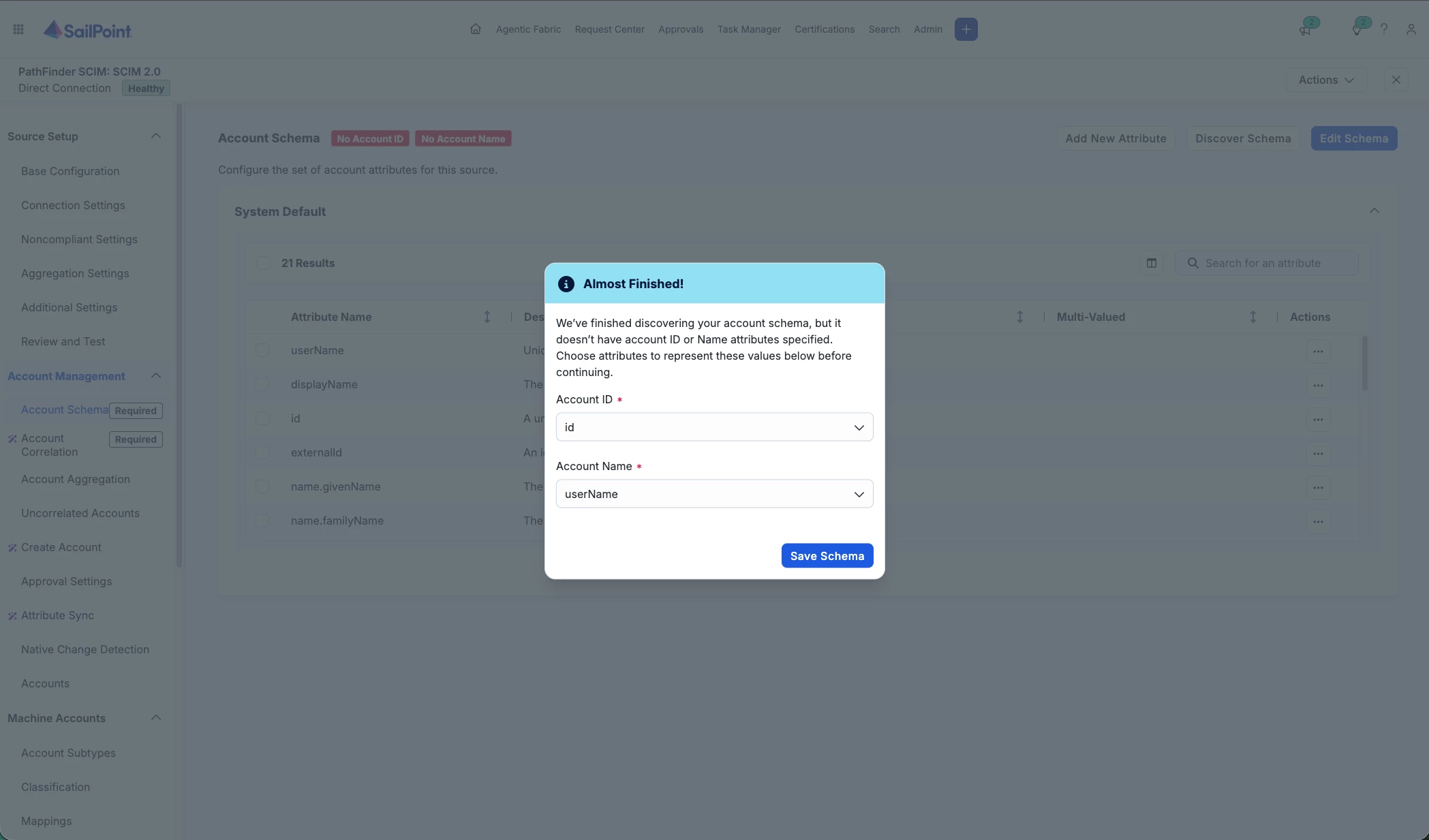
Discover and map the Account Schema.
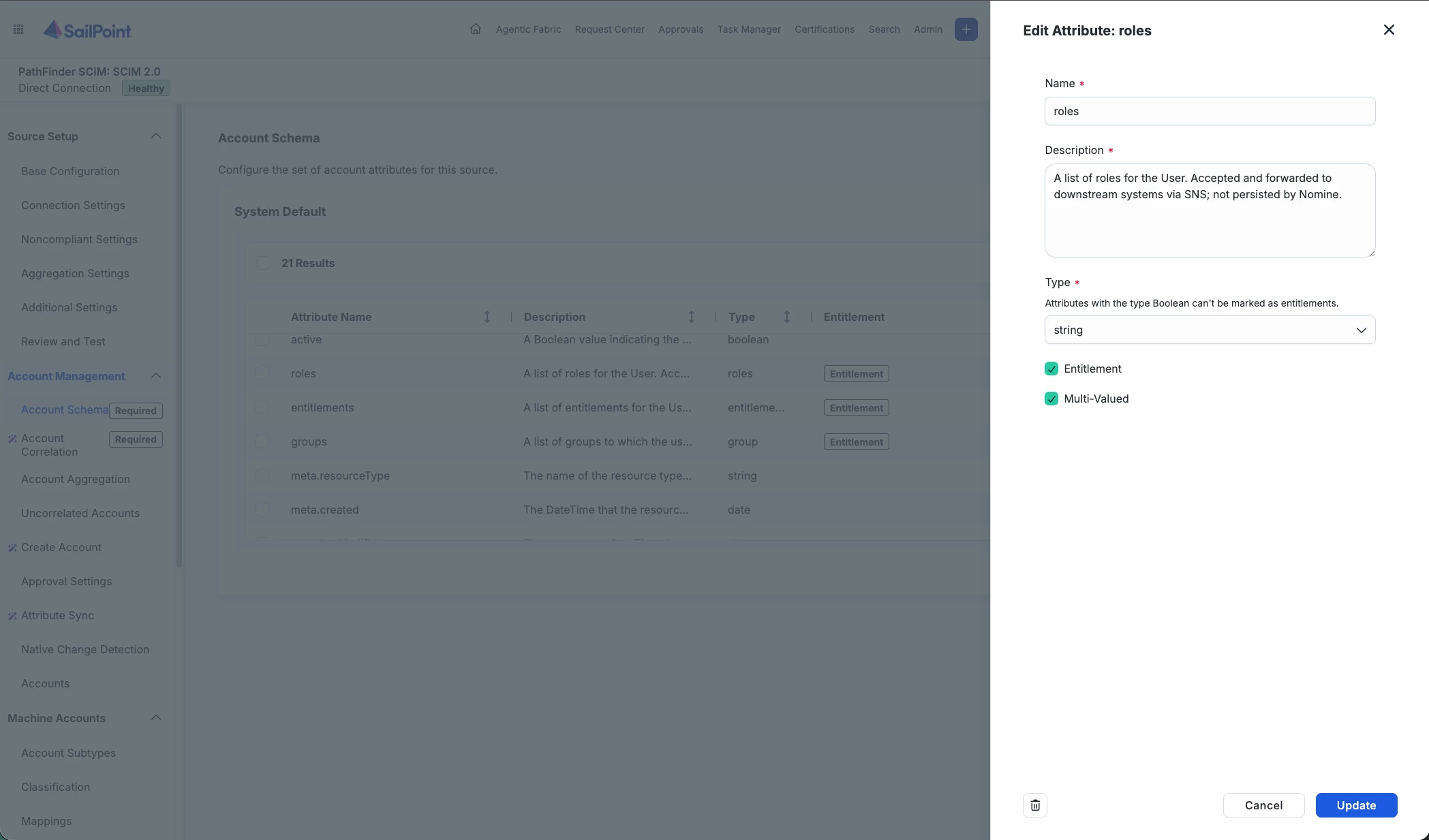
Change both roles and entitlements to string.
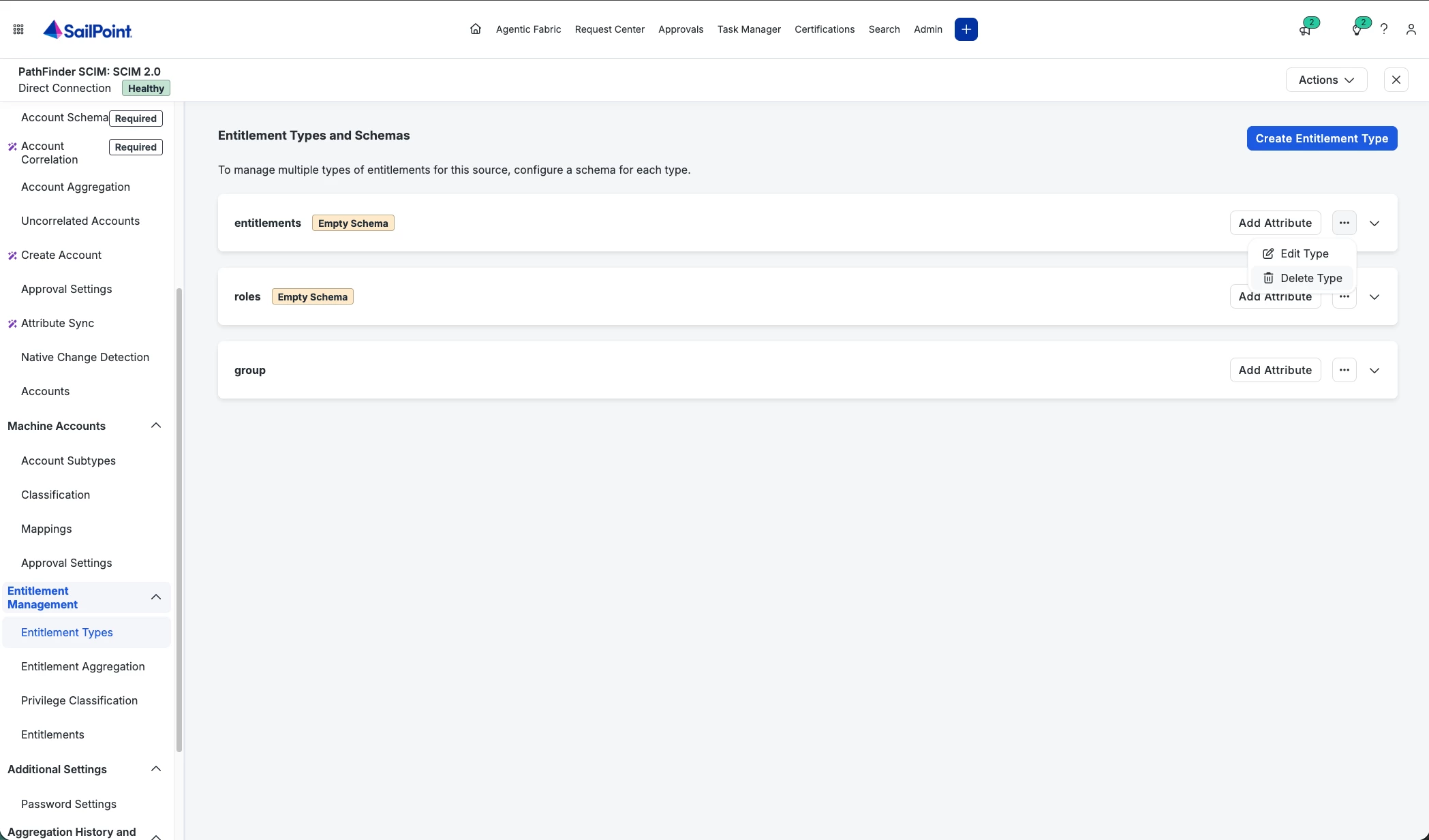
Entitlement Types: Delete both roles and entitlements.
Note: roles and entitlements don’t have an endpoint yet and cannot be aggregated. They are still aggregated indirectly via /Users as entitlement attributes, and will be populated in future product updates.
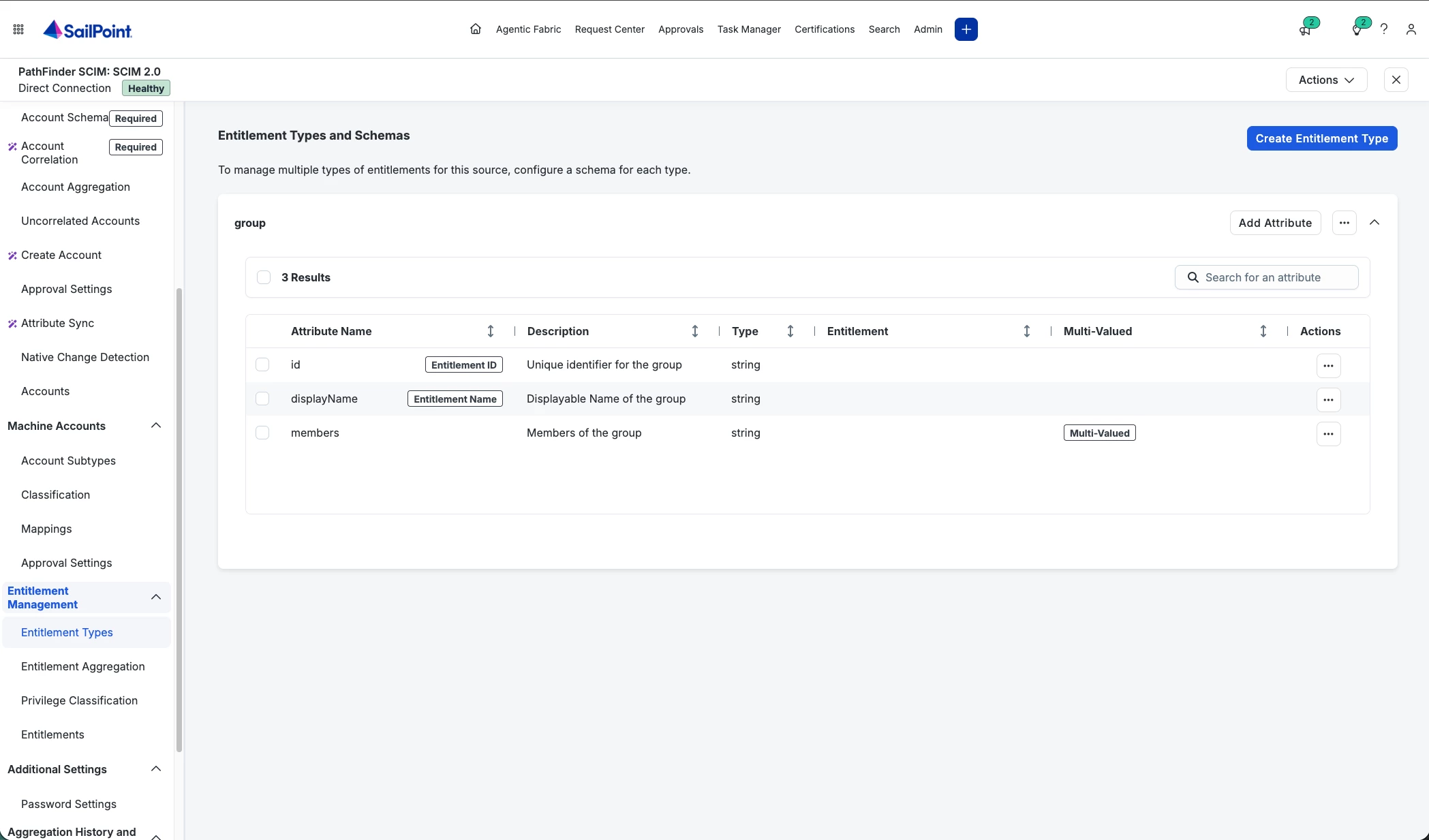
Entitlement Types should have only group.
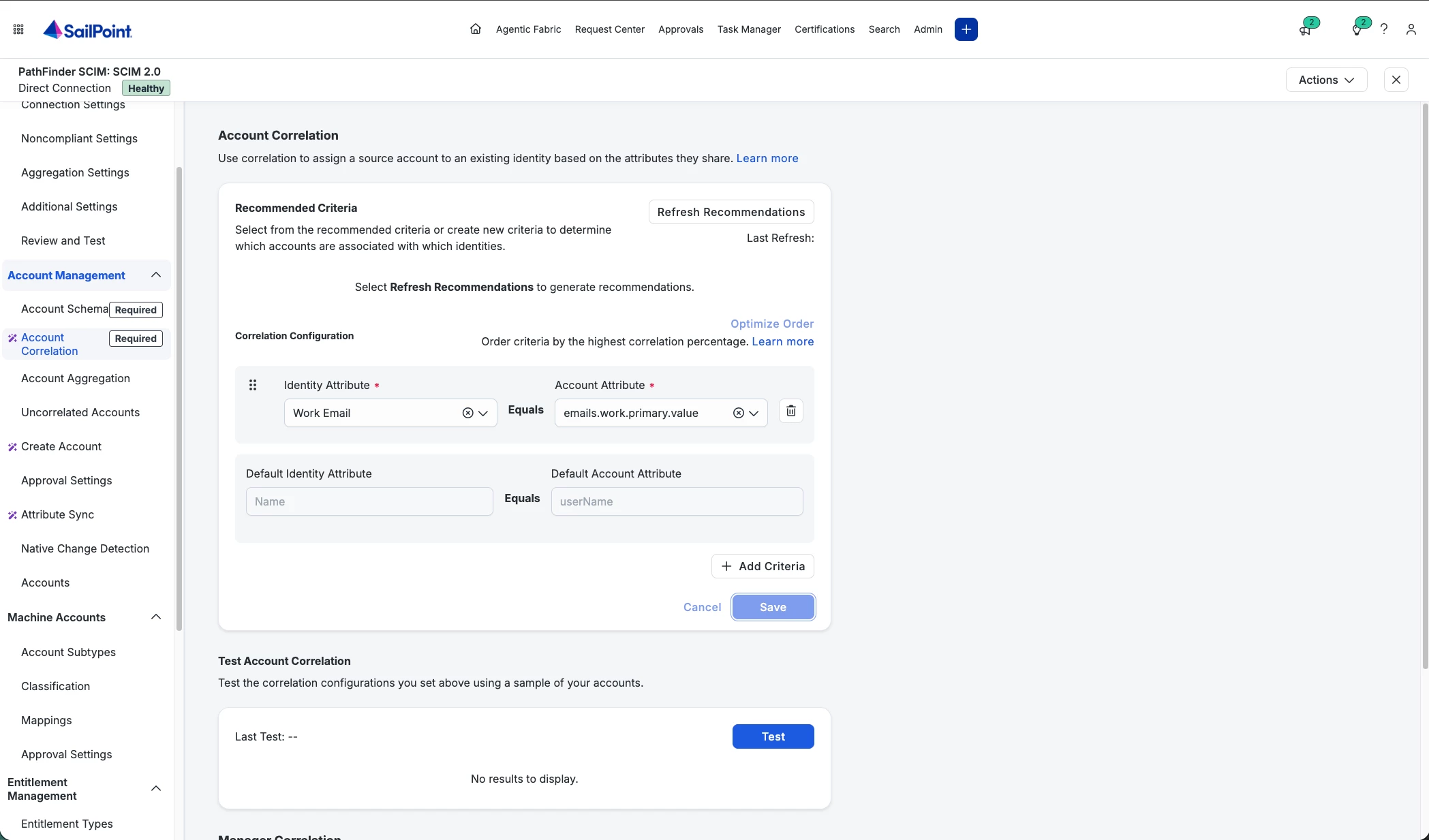
Account Correlation: Use email for correlating identities to accounts.
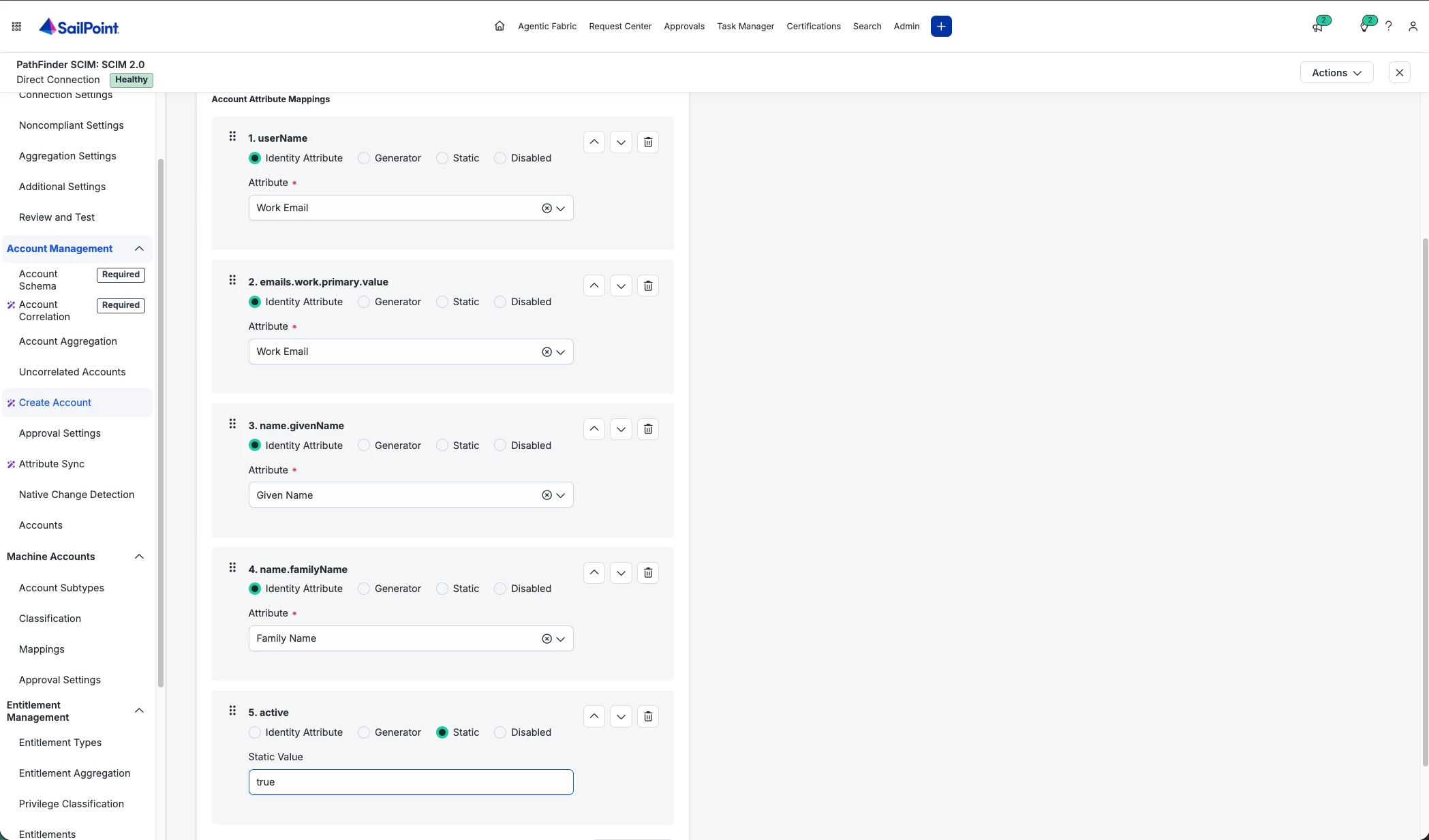
Create Account: Select Work Email for both userName and emails.work.primary.value. Map givenName and lastName. You can set active to true for new accounts.
Testing
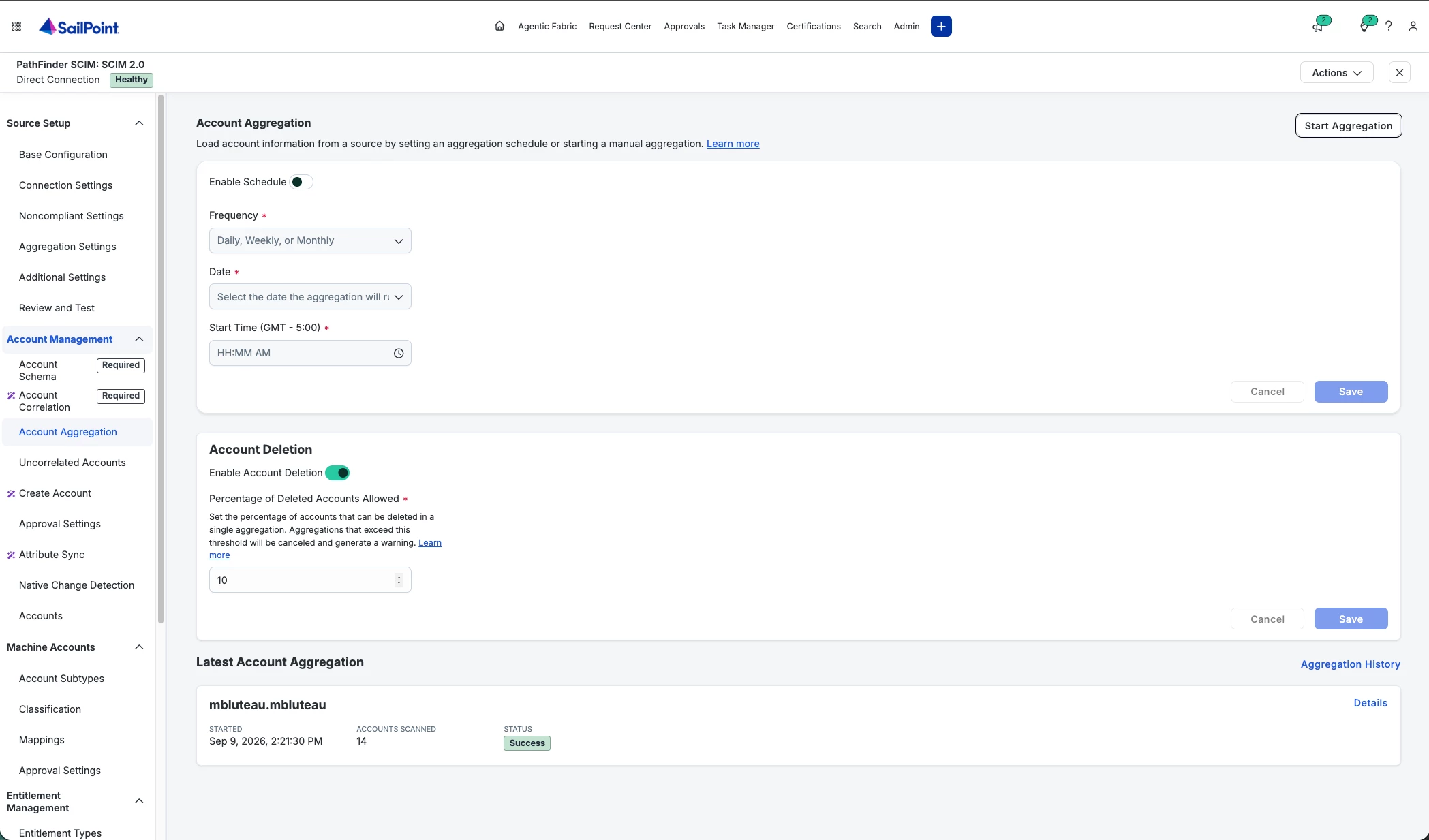
You should be able to run Aggregation for both Accounts and Entitlements successfully.
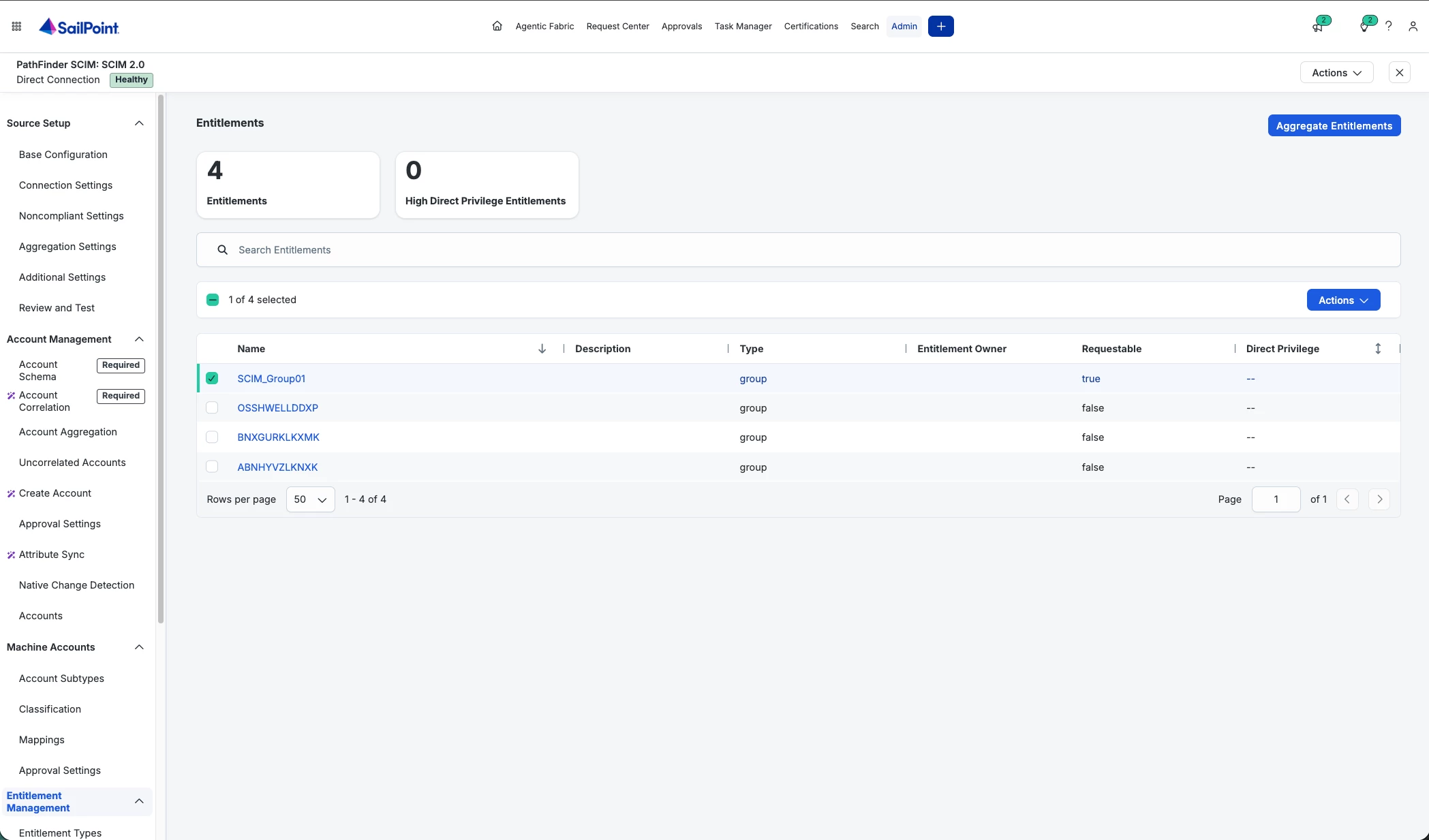
Entitlements: SCIM groups. Mark one group as Requestable.
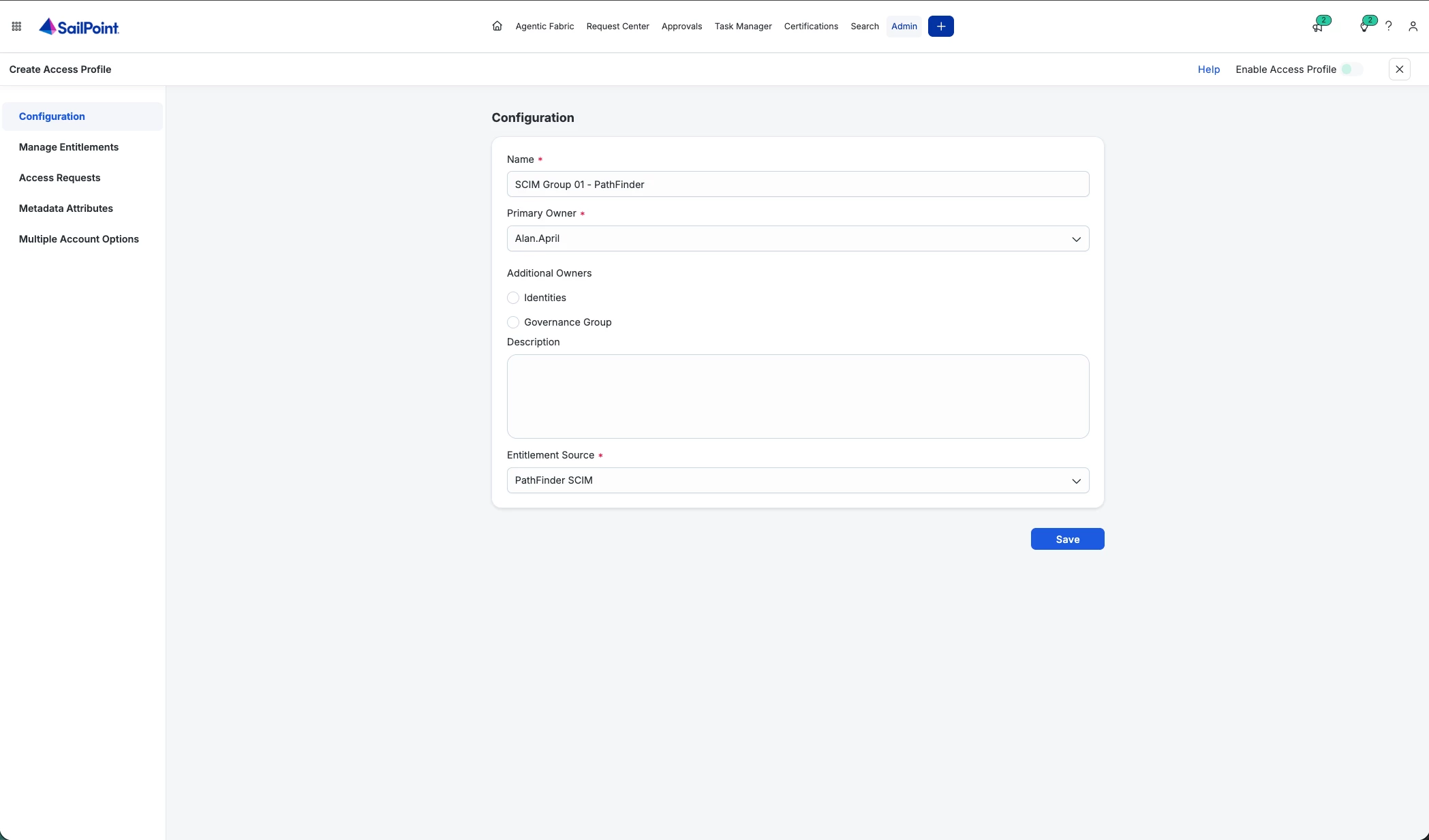
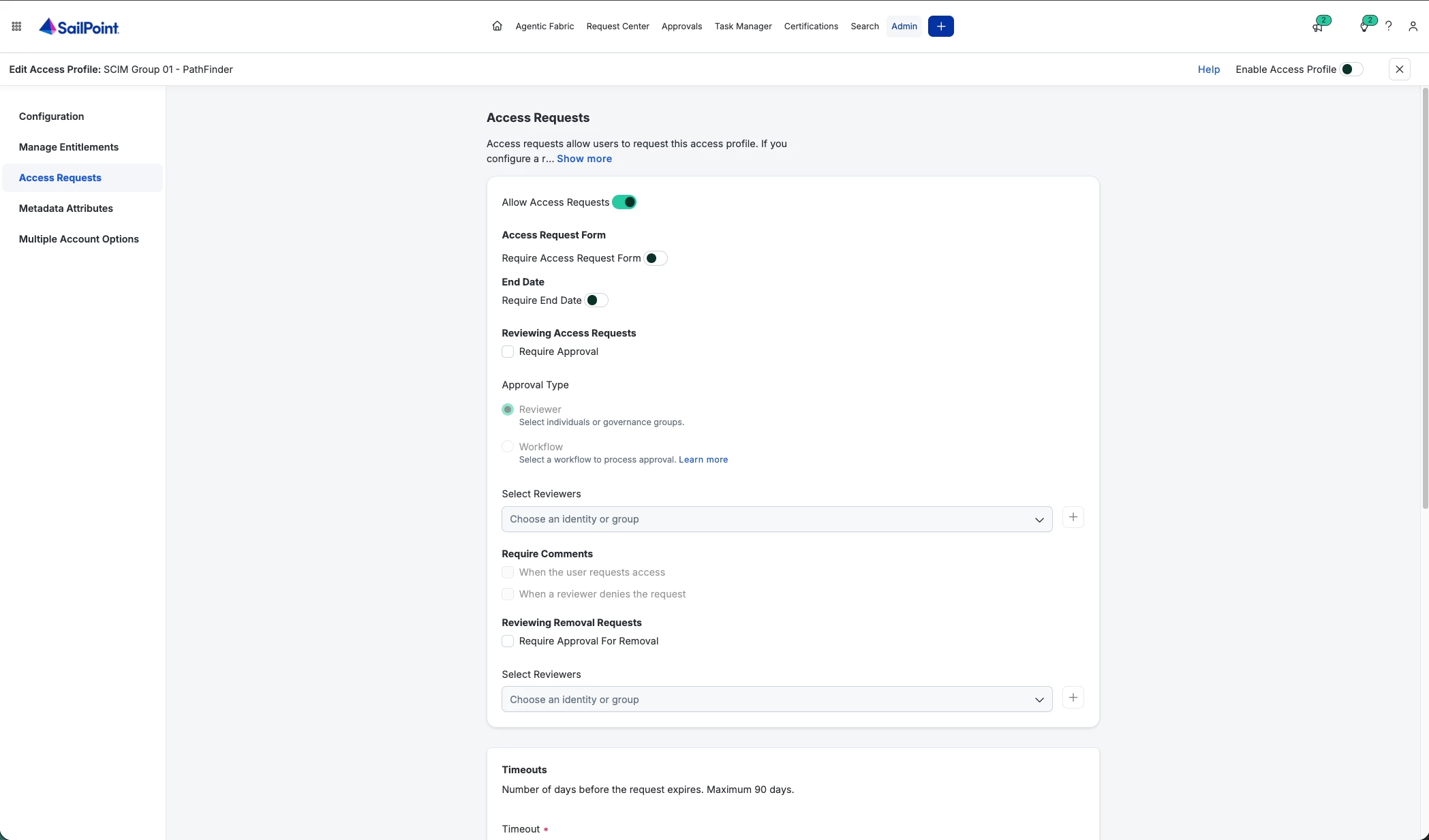
Create an Access Profile.
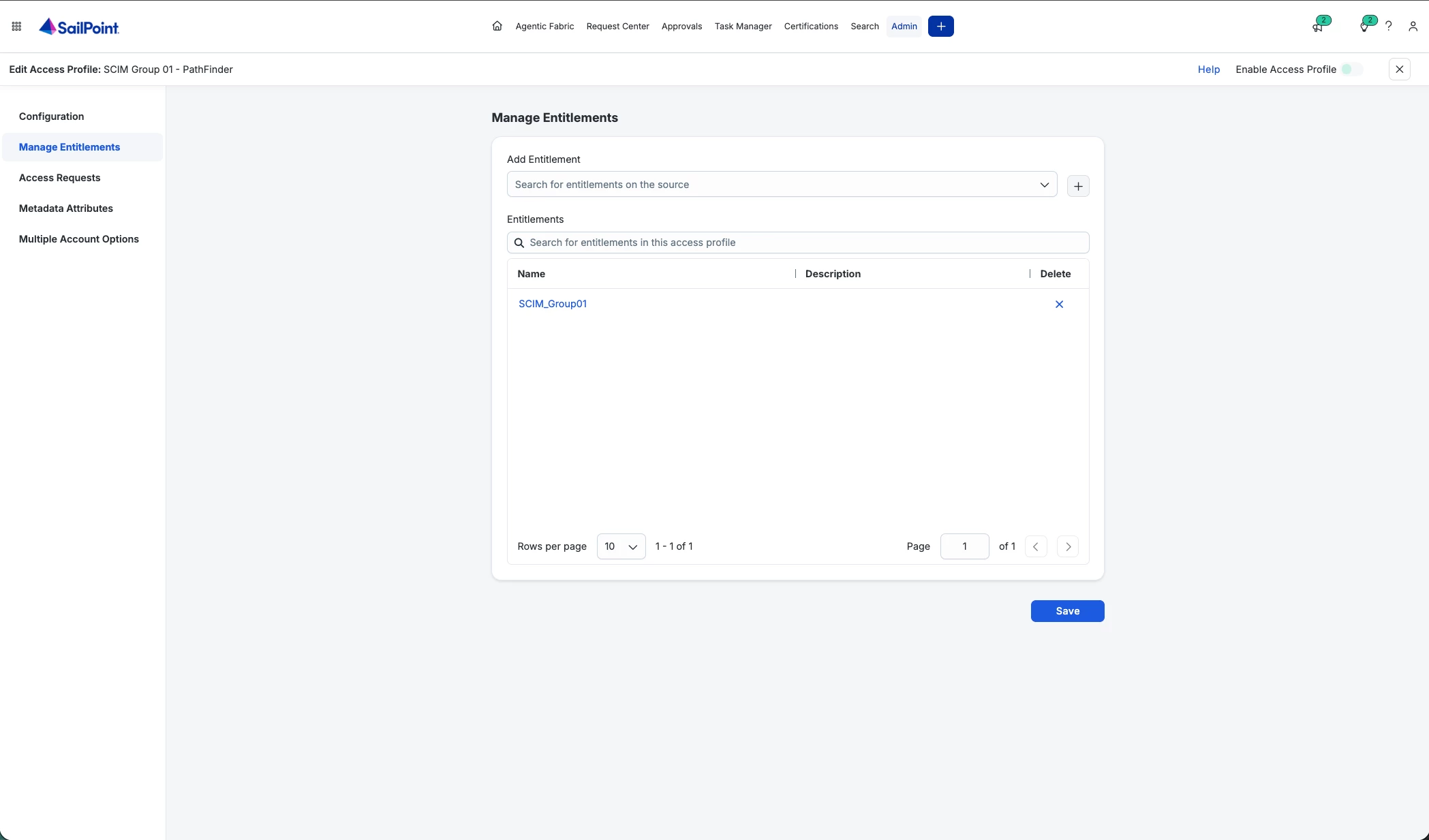
Manage Entitlements: Add the SCIM Group.
Access Requests: Allow. Enable Access Profile (upper right slidder).
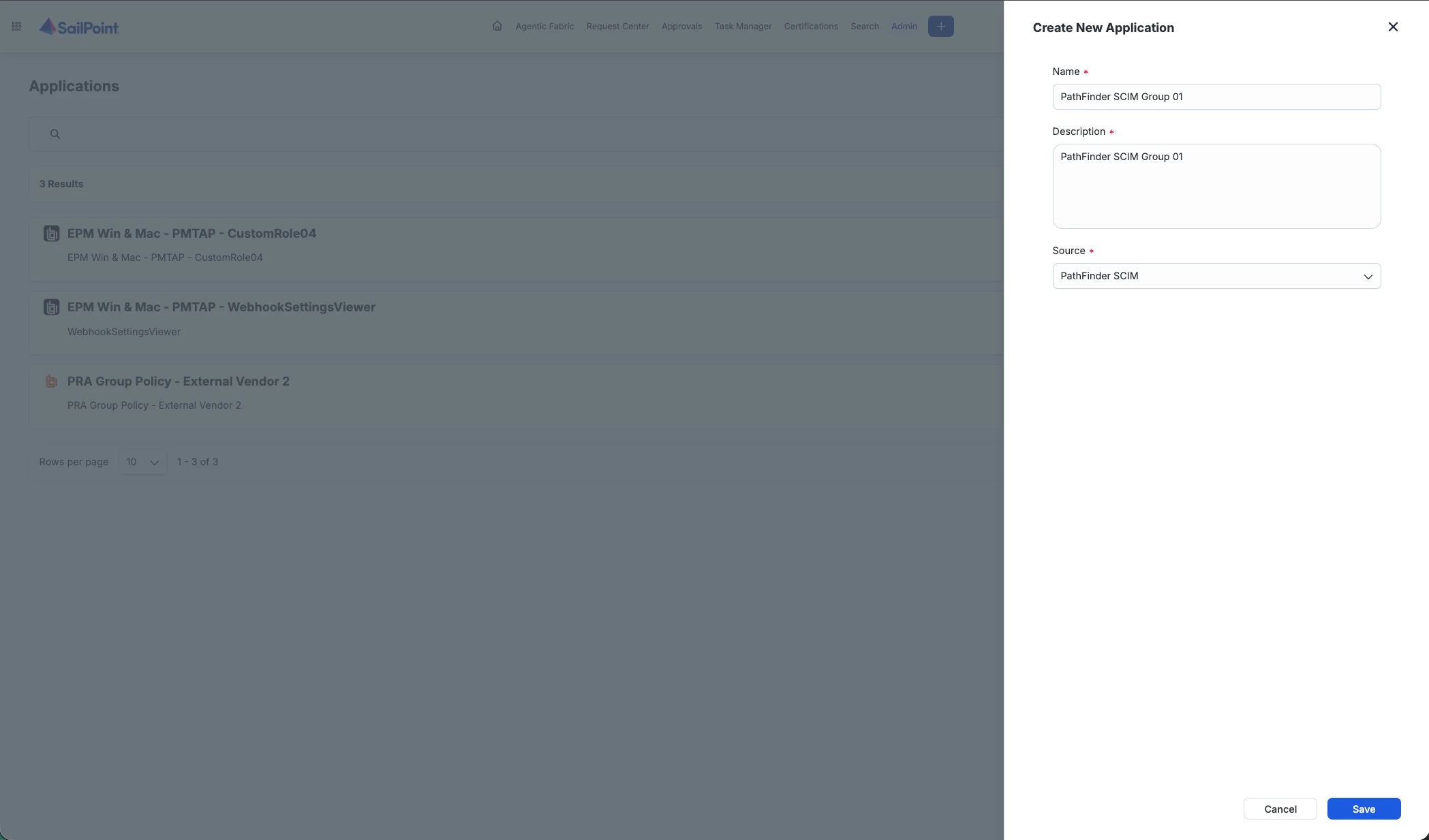
Create a new Application.
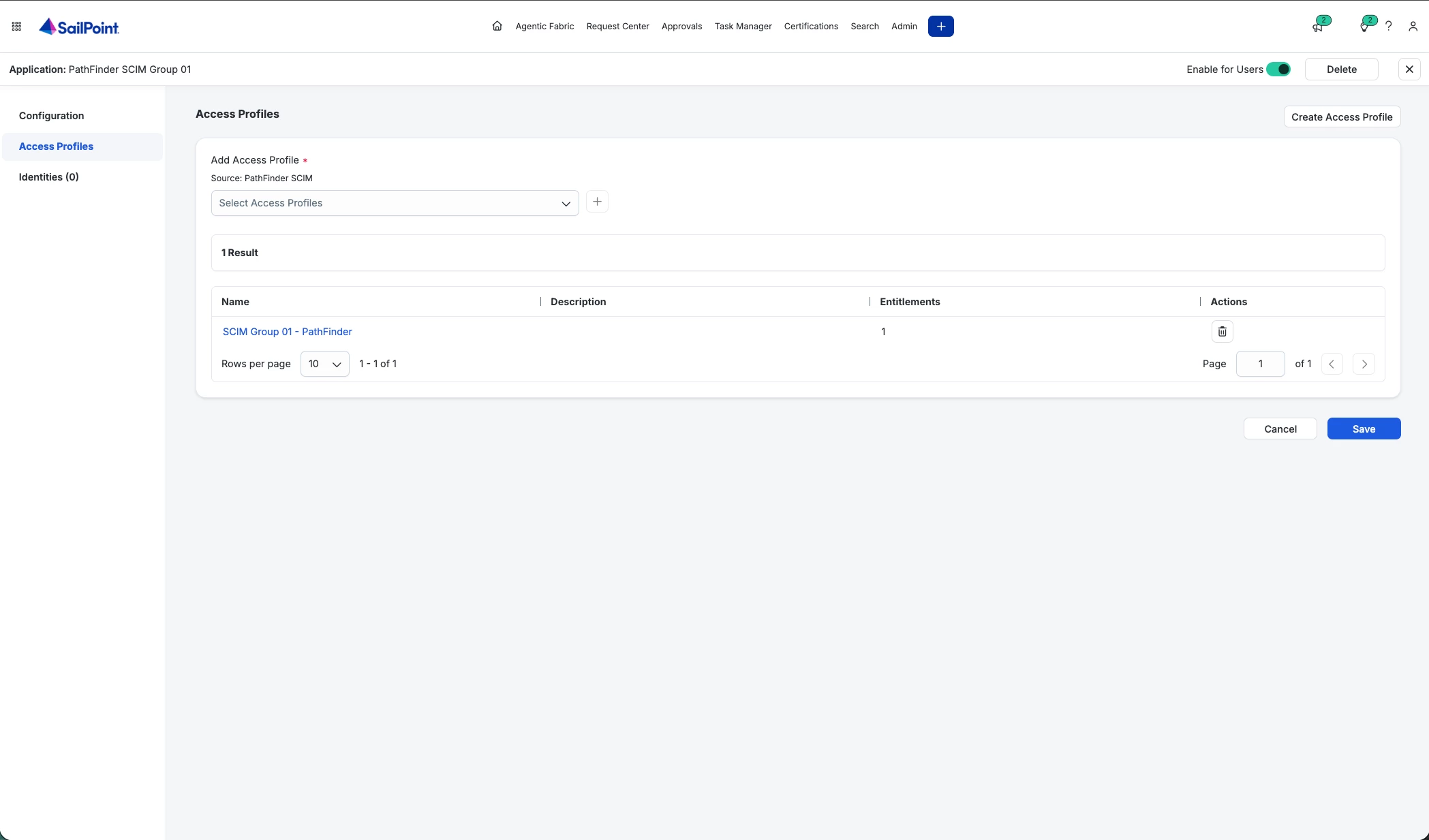
Add the Access Profile. Enable for Users (upper right slidder).
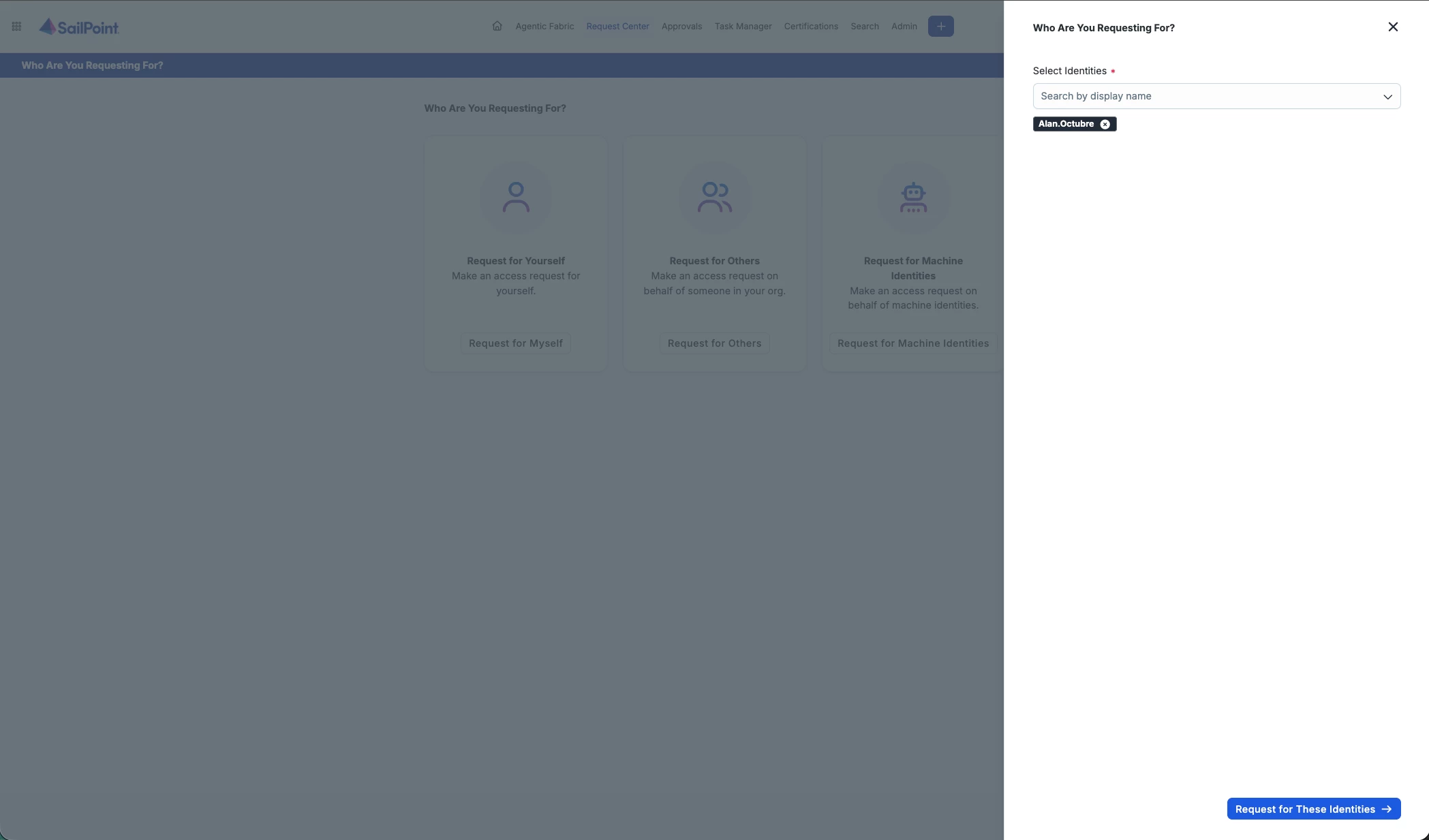
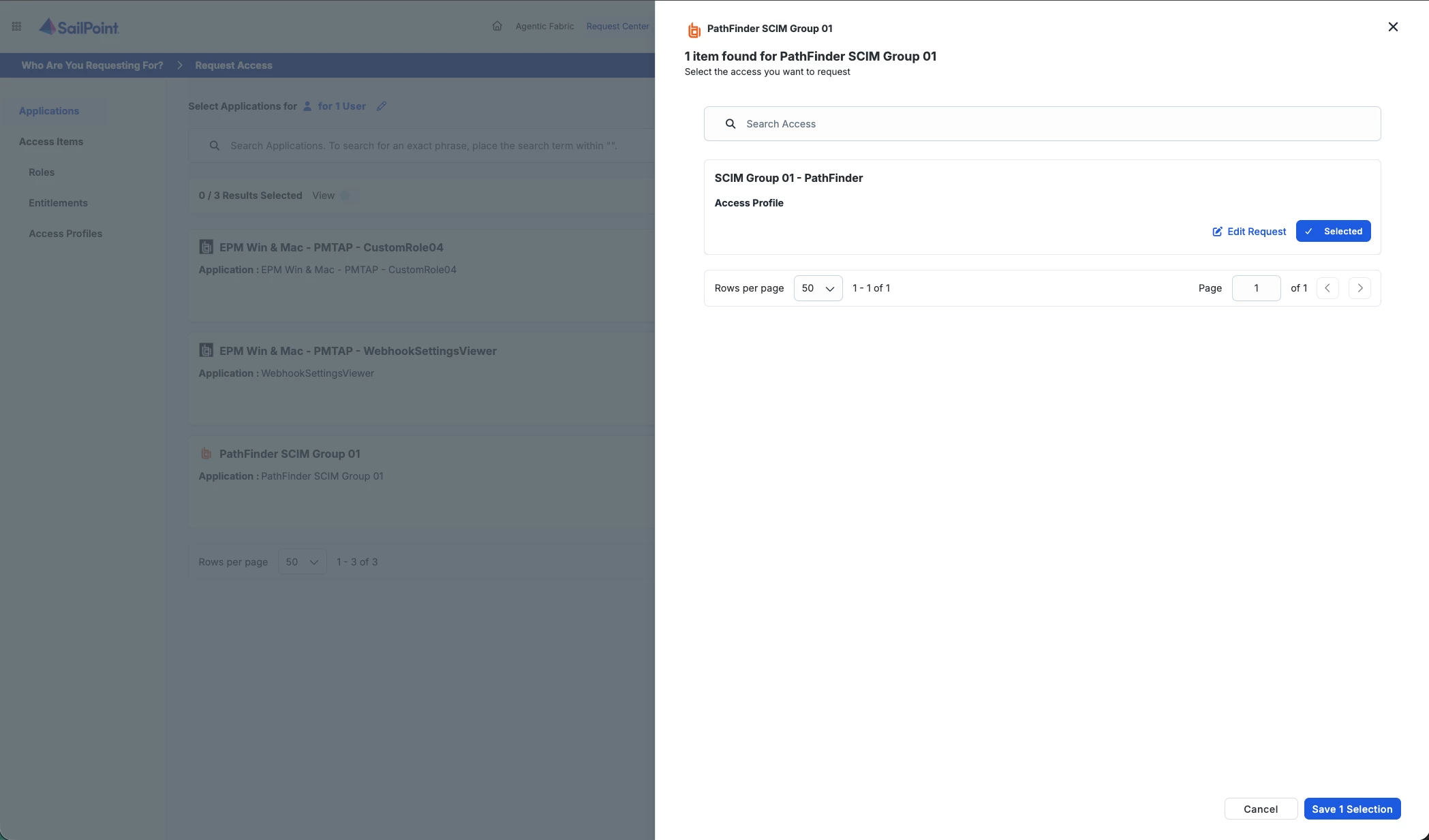
Request Center: Click Request for Others (needs to be enable in Settings).Select the PathFinder Group App, and Access Profile. Save Selection. Review and Submit Request.
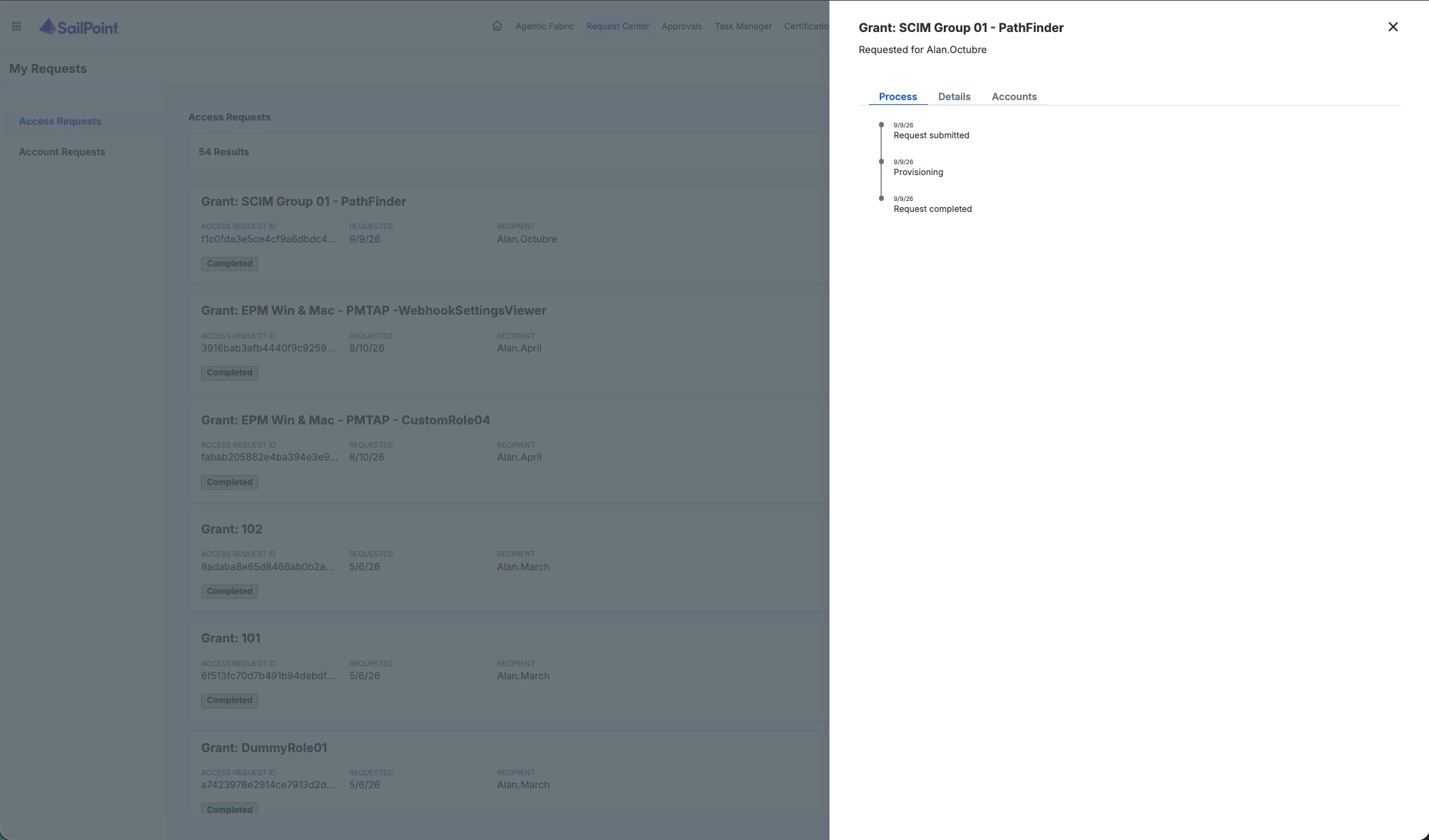
Access Request should complete successfully.
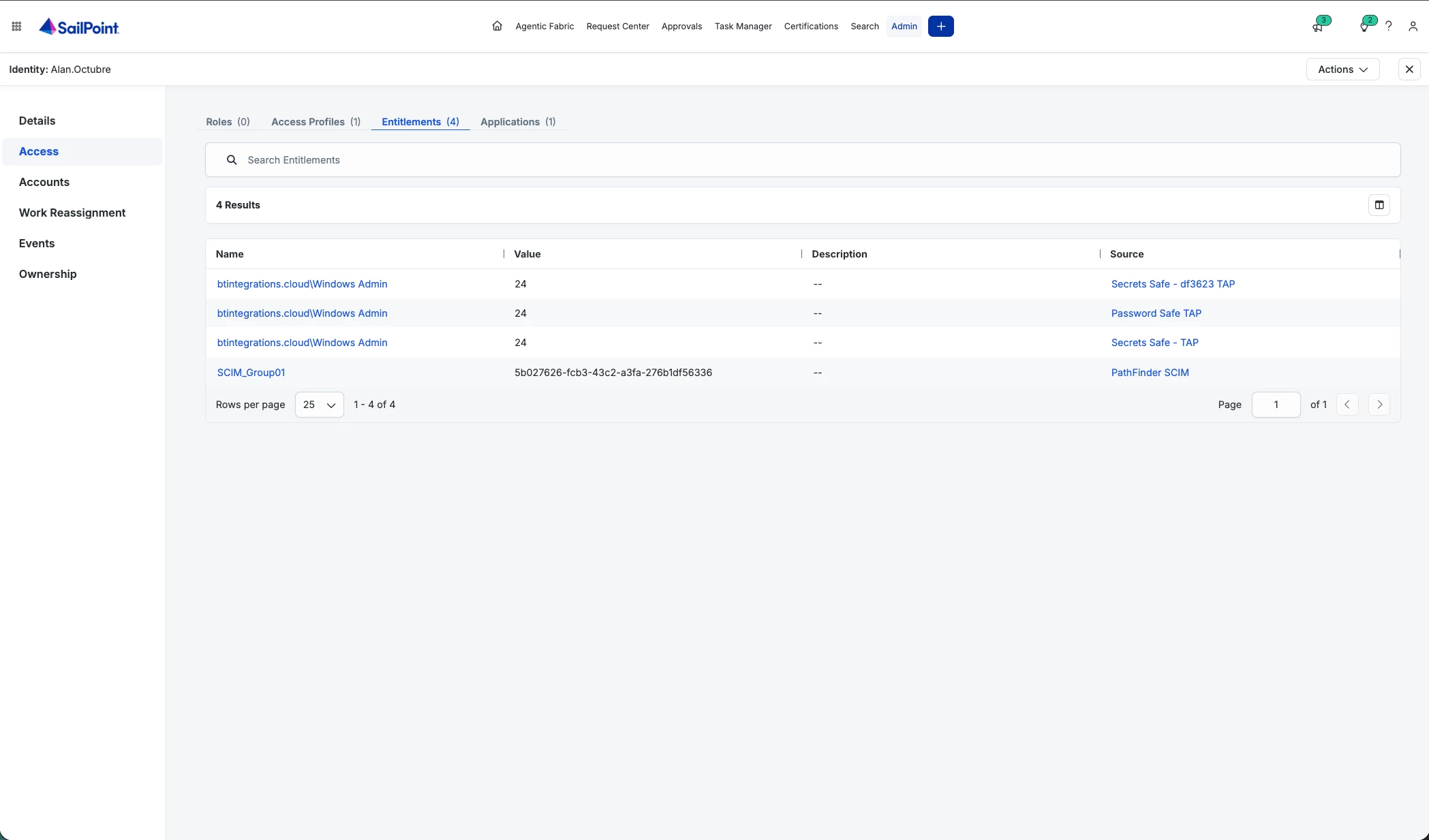
ISC: Identity should show new entitlement.
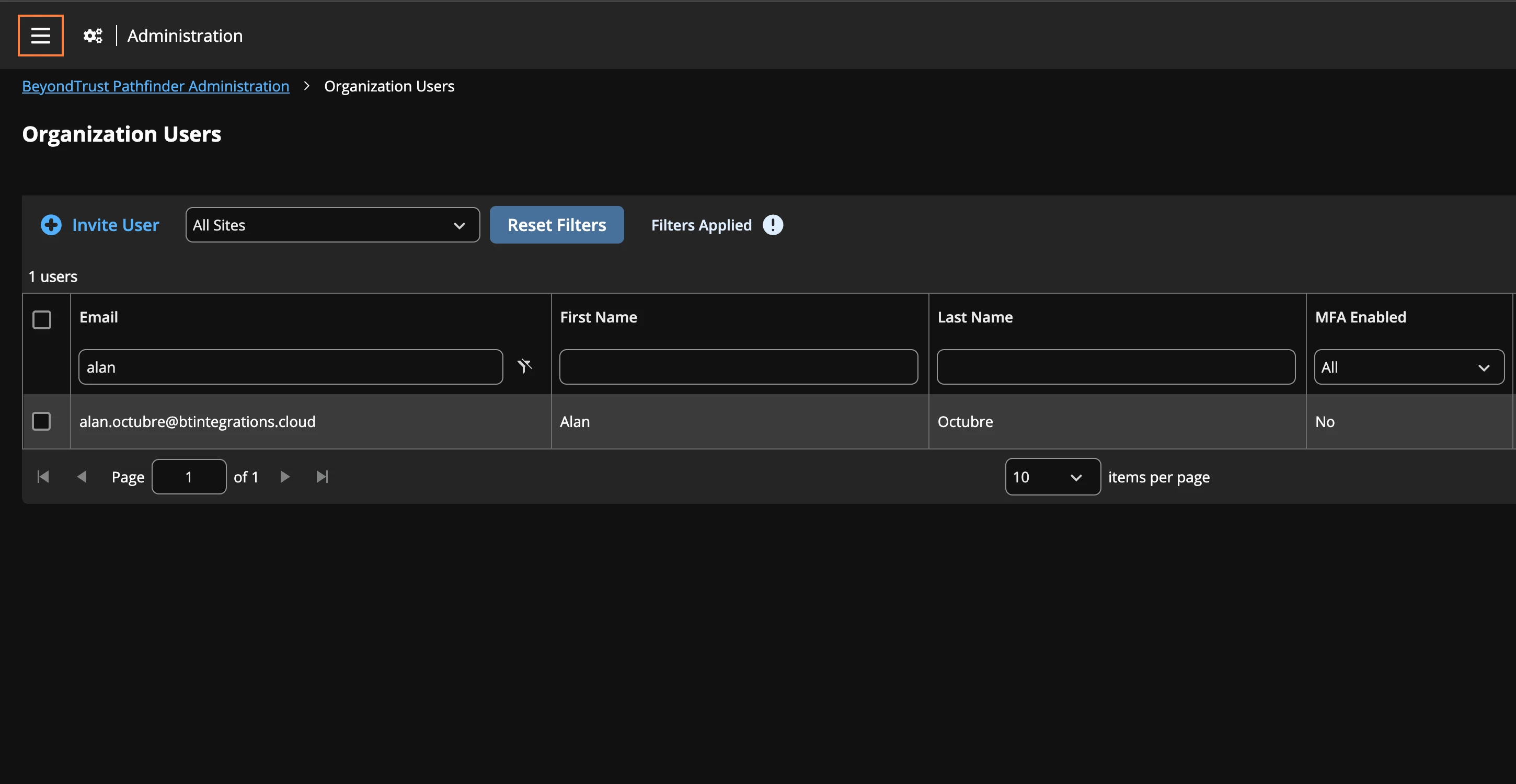
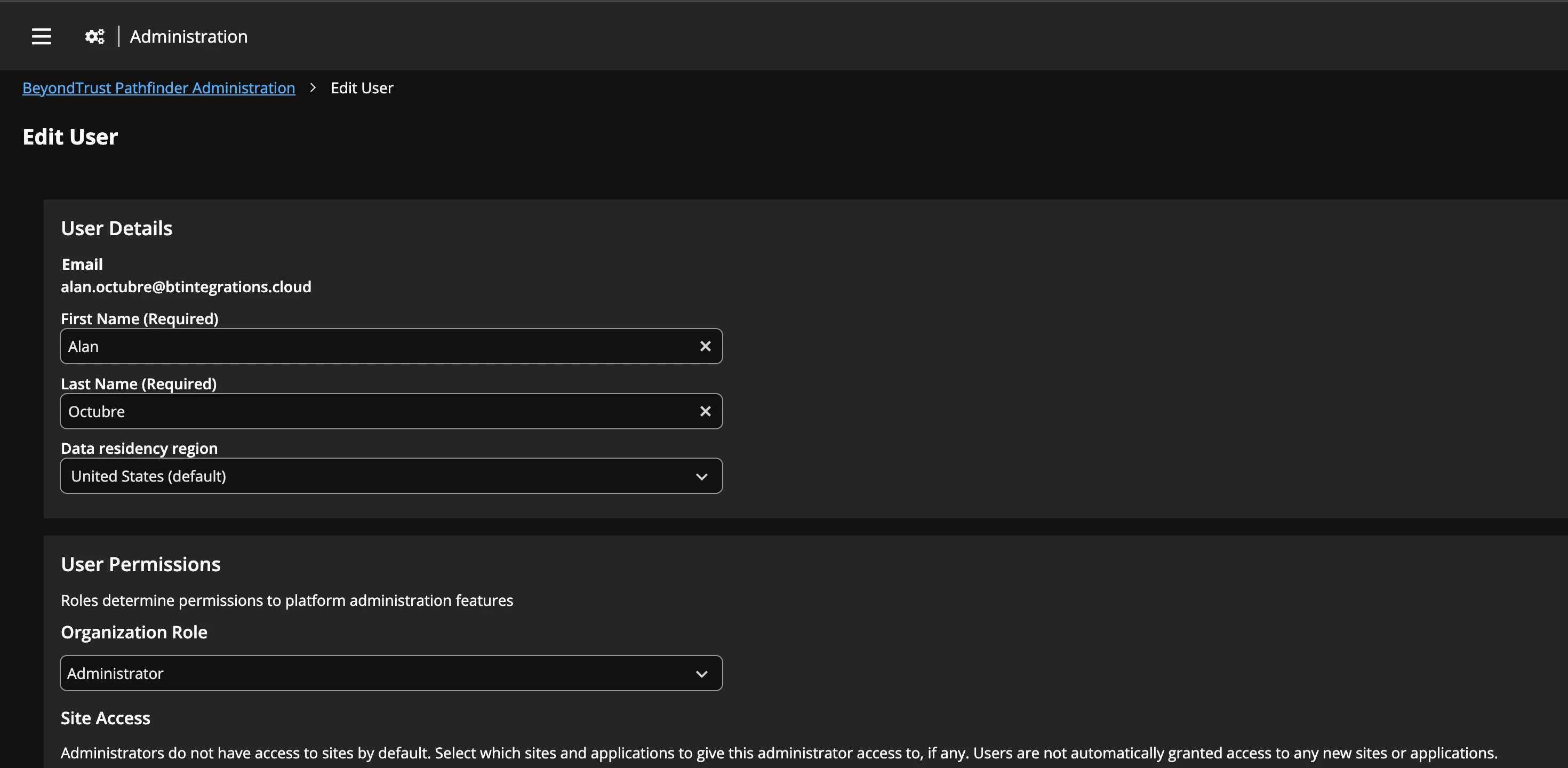
The user should be created in PathFInder under Administration.IMPORTANT: Make adjustments to the PathFinder role (not the SCIM roles eventually populated by individual modules) and module permissions.
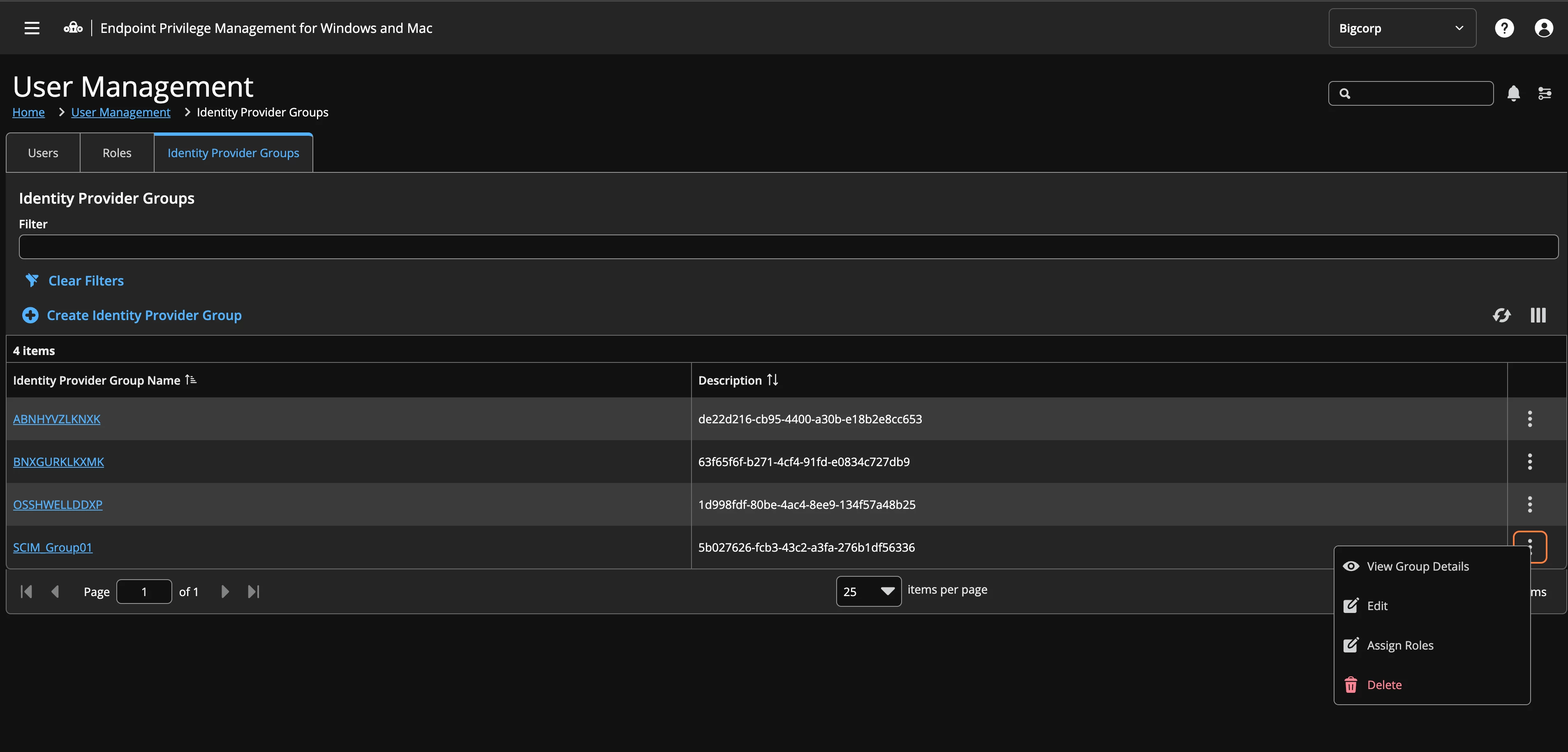
EPM Win & Mac: EPM Roles can be assigned to SCIM Groups.
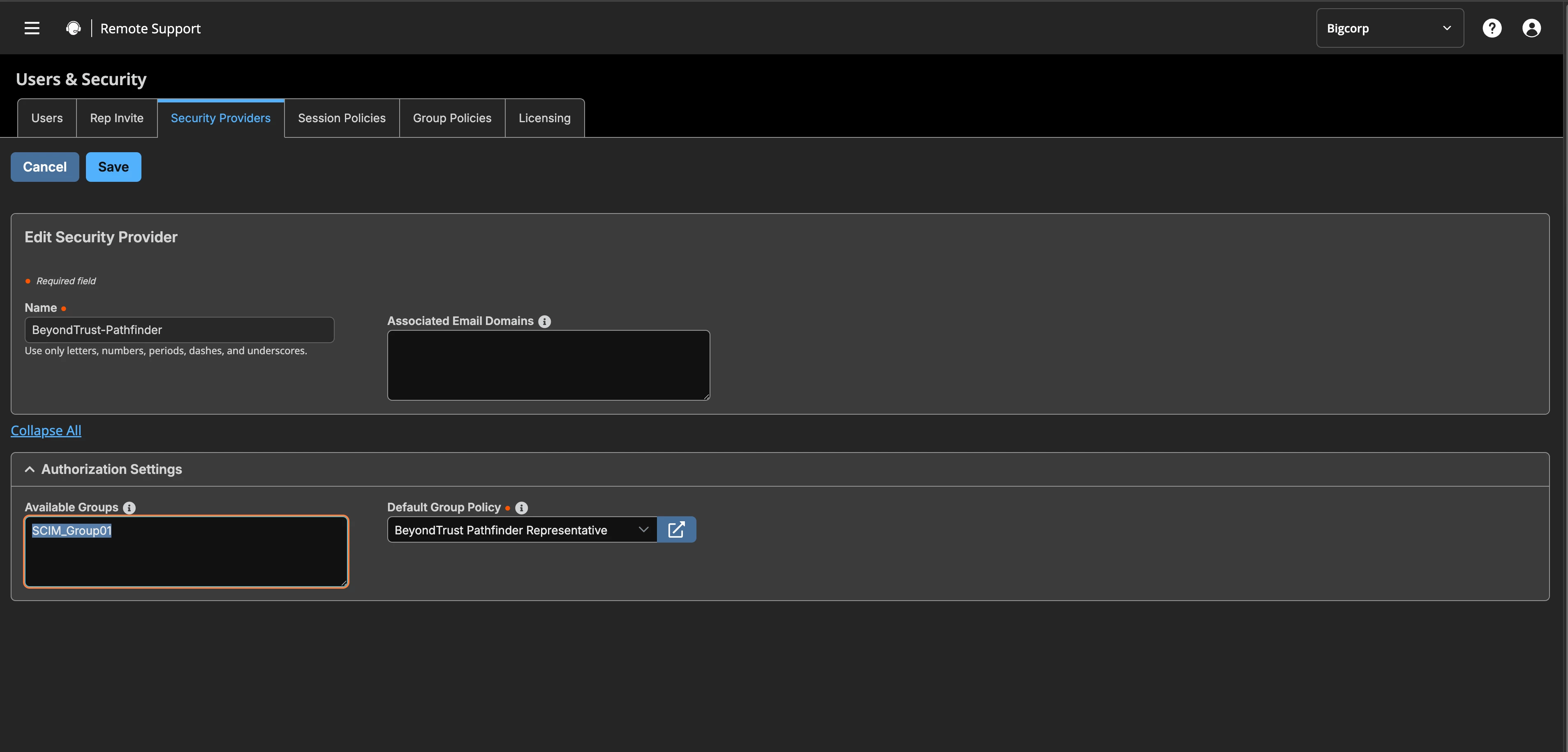
In PRA or Remote Support, Edit the PathFinder Security Provider to manually add the SCIM Group by name.
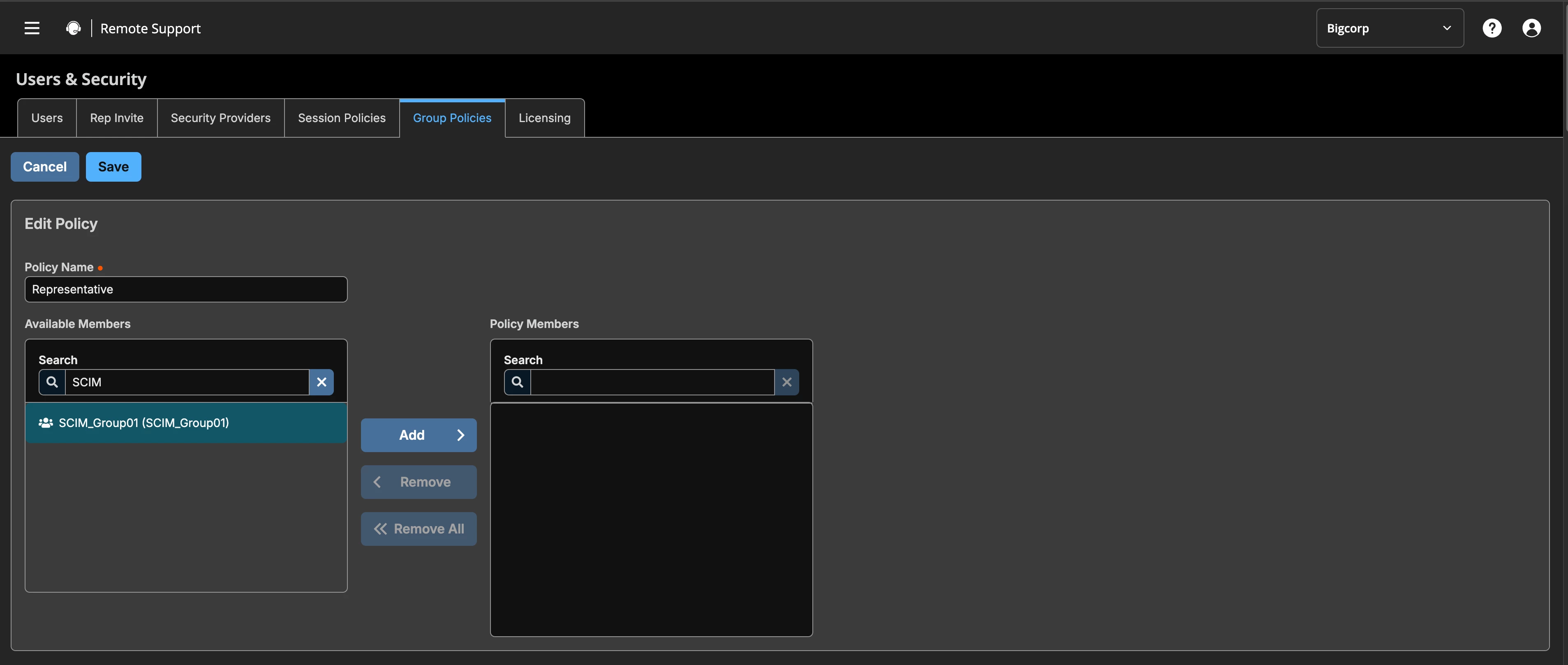
Policy: SCIM Group is now available for Members.
Note: Password Safe support should be added shortly for SCIM Accounts and Groups.