
Newcomer
September 19, 2024
Solved

Remote Support Customer Client pop up on macOS 15 Sequoia

  • September 19, 2024
  • 17 replies
  • 10373 views

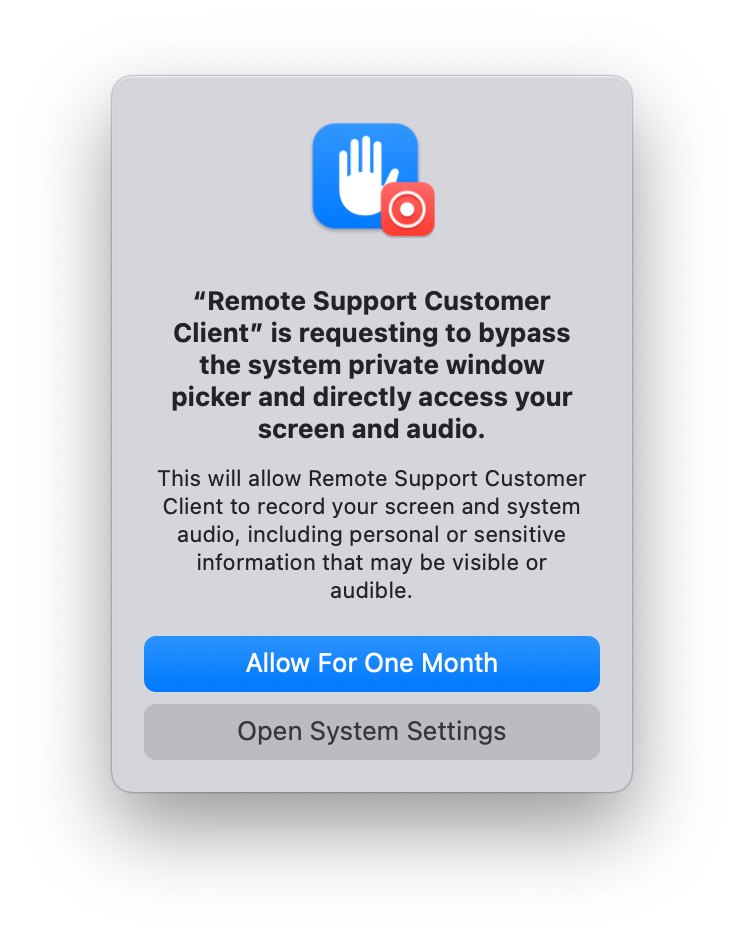
The screen recording allowance for BeyondTrust Remote Support has been popping up multiple times a day for myself and all test users that I’ve had update to macOS 15 Sequoia.

Clicking “Allow for One Month” does not seem to function - as the pop ups continue.
 

    Best answer by GloriaB

    Please review the following article:

    macOS Sequoia not fully supported - "Remote Support Customer Client" is requesting to bypass the system private window picker and directly access your screen and audio.

    https://beyondtrustcorp.service-now.com/csm?id=kb_article_view&sysparm_article=KB0021584


    17 replies

    Apprentice
    November 14, 2024

    And it’s thursday again. What’s the actual status of the update? 

    BeyondTrust Employee
    November 14, 2024

    And it’s thursday again. What’s the actual status of the update? 

    Hello WhiteBeer - from past experiance, SRA updates are usually released in the afternoon, US/CST time.

    BeyondTrust Employee
    November 15, 2024

    Hello All, SRA (RS and PRA) version 24.3.x has now been released, please see the BeeKeepers post here:


    GloriaB
    BeyondTrust Employee
    BeyondTrust Employee
    November 27, 2024

    The kb article above has also been updated:  

    macOS 15 Sequoia - "Remote Support Customer Client" is requesting to bypass the system private window picker and directly access your screen and audio.
    https://beyondtrustcorp.service-now.com/csm?id=kb_article_view&sysparm_article=KB0021584


    Apprentice
    September 24, 2025

    I had this happen again with the recent 25.2.1 update on macOS 26 Tahoe and lower.  Ended up opening a ticket with Beyond Trust, and they instantly responded with the below fix that worked perfectly. 

    This can be resolved by running "sudo tccutil reset All com.bomgar.bomgar-scc" and rebooting. It will prompt the user for screen sharing again but once it has been accepted it shouldn't produce the cascading window issue again.


    (STEP BY STEP)

    1. Open Finder

    2. Go to Applications > Utilities > Terminal

    3. Run the following command:

      sudo tccutil reset All com.bomgar.bomgar-scc

      Note: This clears all previous privacy and permission settings. If you’re doing this remotely, be aware that once the reset is done and the Mac is rebooted, you’ll lose screen, mouse, and keyboard access until the end device re-authorizes permissions.

    4. Enter the Mac user password when prompted and press Enter. 

    5. Restart the Mac.

      Have the end user re-authorize all required permissions (screen recording, audio, accessibility, etc.), quitting and reopening the app (when prompted) after each step.

      Once permissions are re-granted, everything will work normally without repeated prompts.

    Apprentice
    November 10, 2025

    Thanks for the info.  We updated to 25.2.2 and are seeing an influx of tickets regarding the dialog box popping up multiple times throughout the day (even though permissions are set correctly).  Various macOS versions below Tahoe.  Going to give that command a try.  

    Apprentice
    August 24, 2026

    Thanks for the info.  We updated to 25.2.2 and are seeing an influx of tickets regarding the dialog box popping up multiple times throughout the day (even though permissions are set correctly).  Various macOS versions below Tahoe.  Going to give that command a try.  

    Any luck?